Viral Fancam AI Video Tutorial: Create Trending AI Fancam Videos
What Is a Viral Fancam AI Video? Viral fancam AI videos are becoming popular on Instagram Reels, YouTube Shorts, and other social media platforms because of…
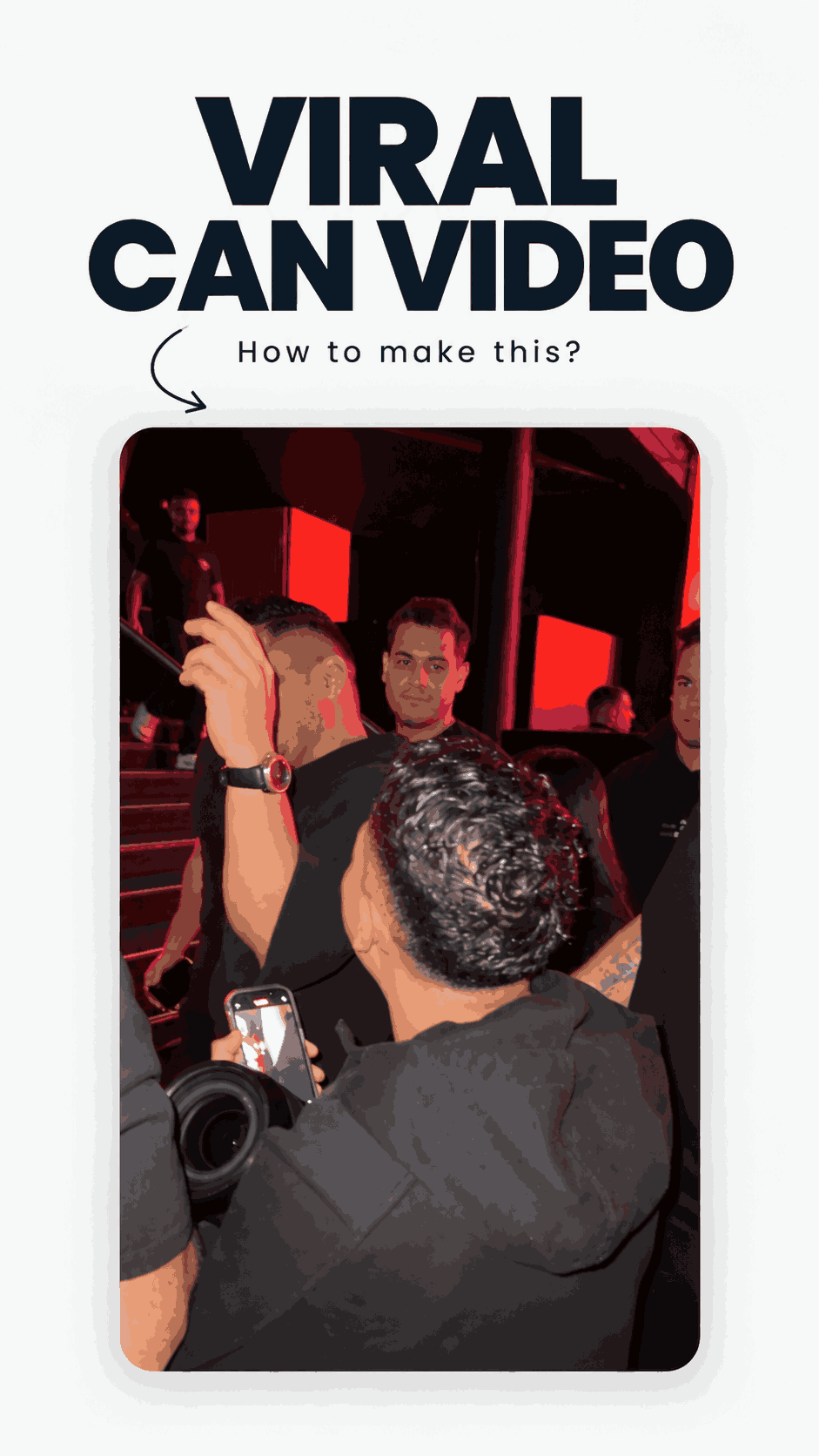
Prompt 1
Works with: kling
Video-to-video character replacement. Keep @Video 1 exactly the same: same handheld iPhone camera movement and shake, same framing, timing, red backstage lighting, background, crowd, bodyguards, and the fan in the foreground holding the phone and the big DSLR lens. Do not change anyone else.

Replace only the main man in the center (the one who walks in, talks to the fan and laughs) with the person from @Image 1. Use the exact face, hairstyle, skin tone, body shape and outfit from @Image 1. Do not keep the original man’s clothes, body size or appearance.

Keep all of his acting and timing exactly the same: he walks in through the people, stops in front of the fan and talks very animatedly and playfully. He makes a pinched-finger gesture near his mouth, waves an open palm while telling a story, points at the fan’s phone, leans down to look at the screen and then laughs hard, covering his forehead with his hand. Same head movements, same lip movement, same expressions.

Photorealistic, the identity from @Image 1 stays consistent in every frame, natural skin that matches the red ambient light, no face morphing, no flicker, no extra people, real iPhone fan-cam look, 9:16 vertical.
Negative prompt: blurry, low quality, distorted, extra limbs
Before starting the viral fancam AI video tutorial, you need a few basic tools. First, choose a high-quality photo of the person or subject you want to feature in your video. A clear image with good lighting and a visible face generally produces better results. Next, use an AI video generation tool that supports image-to-video animation and allows you to describe camera movements, lighting, and motion through a text prompt. Depending on the tool you choose, you may be able to generate short cinematic clips directly from your image. You can then use a mobile editing application such as CapCut to add music, transitions, speed effects, color grading, and other finishing touches. Some AI tools offer free credits, while others require a paid subscription, so check their current plans before getting started.
Related prompts
- Mountain View Vibe Video Editing Prompt For Flow AI
- Celebrity Funny Dance AI Video Prompt (Google Flow, 9:16)
- Open Gangnam Style Trend Prompt for Google Flow (3-Person Dance)
- Navratri Nails Transformation AI Video Tutorial
- Finger Snap Horse AI Video – Create a Viral AI Horse Video
- Garba AI Dance Video Editing Tutorial – Create Viral AI Dance Videos
- Trending Ganpati Bappa AI Video Editing Prompt
- Mercedes Car Stand AI Video Editing Prompt
- Radha Krishna Divine Love Story | Viral AI Video Editing Prompt
- Trending Flying Fairy AI Video Editing Prompt
- Celebrity Funny Dance AI Video Editing Prompt 2026
- Zombie to Love Story Memory AI Video Editing Prompt