Viral Frank AI Video Editing Prompt
Want to create a funny and entertaining Frank AI video that looks realistic and grabs attention on social media?
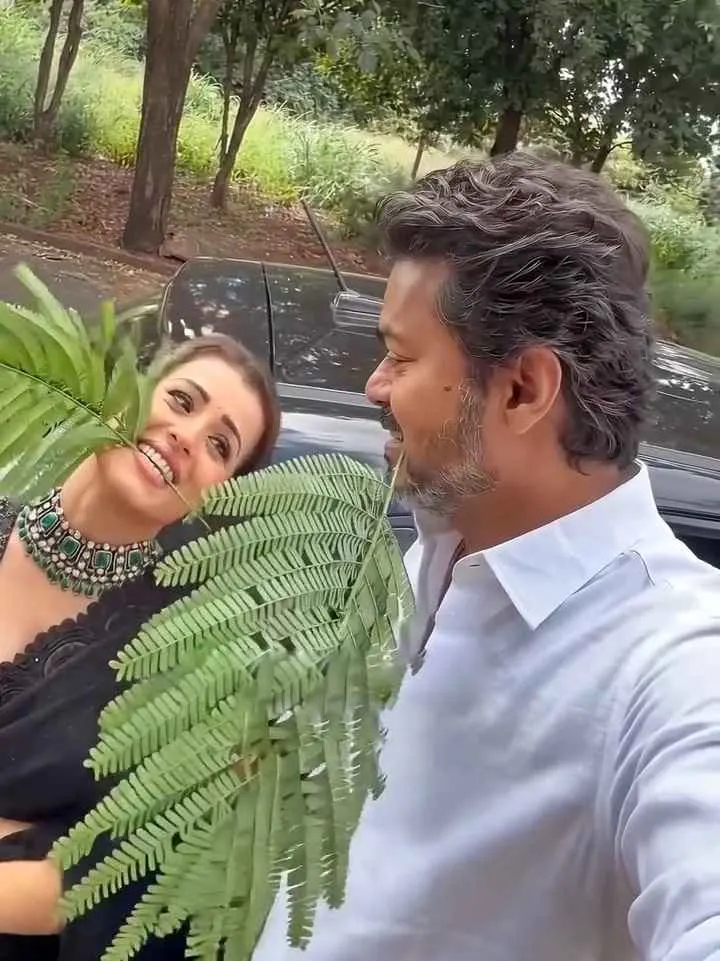
Viral Frank AI Video Editing Prompt 2026
Works with: CapCut
Use @video1 as the strict reference for all actions, gestures, interactions, timing, camera movements, framing, and editing.

Replace the Men character with @image1 and the Women character with @image2. Preserve each image reference’s complete character design: face, hair, body proportions, colors, clothing, and distinctive details. Reproduce the video’s expressions and emotions naturally while keeping both characters recognizable and consistent throughout.

Keep the original environment, lighting, duration, aspect ratio, and audio. Change only the characters’ appearance.

NEGATIVES: identity swaps, mixed character features, appearance drift, altered actions, extra characters, distorted faces, extra limbs, flickering, new scenes, text, watermarks.
Negative prompt: blurry, low quality, distorted, extra limbs
The Frank AI video trend is a creative video-generation concept in which an AI-generated character named Frank appears in an entertaining or cinematic scene. You can experiment with different situations, character expressions, camera movements, and backgrounds to create your own version. Instead of recording every scene with a camera, you can describe your idea in a detailed prompt and use an AI video generator to bring it to life. The final result depends on the prompt, reference image, and video-generation features available in your chosen tool.
Here is a ready-to-use prompt for creating a realistic and entertaining Frank AI video using Google Flow. You can customise the scene, character appearance, and actions according to your preferred video idea.
Frequently Asked Questions
How do I use the Viral Frank AI Video Editing Prompt?
1. First, download the folder from the button provided above. It contains the muted reference video and the original audio file. 2. Open Google Flow, start a new project, and select Ingredients mode. 3. Upload the muted reference video along with clear photos of the boy and the girl. 4. Copy the prompt provided below and paste it into the prompt box. 5. Type @ and select the correct uploaded files to tag them: @video1 – Muted reference video @image1 – Boy’s photo @image2 – Girl’s photo. 6. @video1 – Muted reference video. 7. @image1 – Boy’s photo. 8. @image2 – Girl’s photo. 9. Choose the 9:16 aspect ratio for a vertical video. 10. Click Generate and wait for Google Flow to create your video.
Which AI tools work with this video prompt?
It is written for CapCut. Most prompts also work in similar image and video generators with small edits.
What aspect ratio should I use?
Use 9:16 for the closest result to the example shown on this page.
Is the Viral Frank AI Video Editing Prompt free?
Yes. Every prompt on Promptseens is free to copy and customise for your own projects.
Related prompts
- Viral Funny Frank Ai Video Editing Prompt
- Sheru Bhai AI Photo Editing Prompt
- Viral Sheru Bhai AI Video Editing Tutorial
- Viral Diwali Pataka Ai Video Tutorial
- Viral AI Video Editing Prompts for ChatGPT & Gemini (2026)
- Ganesh Ji AI Photo Editing Prompts (ChatGPT & Gemini)
- Das Mereya Dilbara Ve Template
- Jal Beech Khada Hoee Chhath Template - Prompt Seen
- 90s Wedding VHS Retro Template - Prompt Seen
- Bride and Groom Glow Template - Prompt Seen
- Diwali AI Photo Editing with ChatGPT
- Viral Diwali AI Video Editing Prompt 2026
More: All Photo-prompts